Connecting Your Email Account
When you click Email in the sidebar, Celect prompts you to connect either your Gmail or Outlook account.
- Select your preferred provider (Gmail or Outlook).
- Follow the on-screen prompts to grant secure access.
- Once approved, your inbox and sent mail load inside Celect automatically.
Your connected inbox now syncs in real time, so you can send and receive messages from within Celect while keeping full parity with your native email provider.
Note: Messages, folders, and threads remain synchronized—anything sent from Celect also appears in Gmail or Outlook, and vice versa.
Unified Inbox
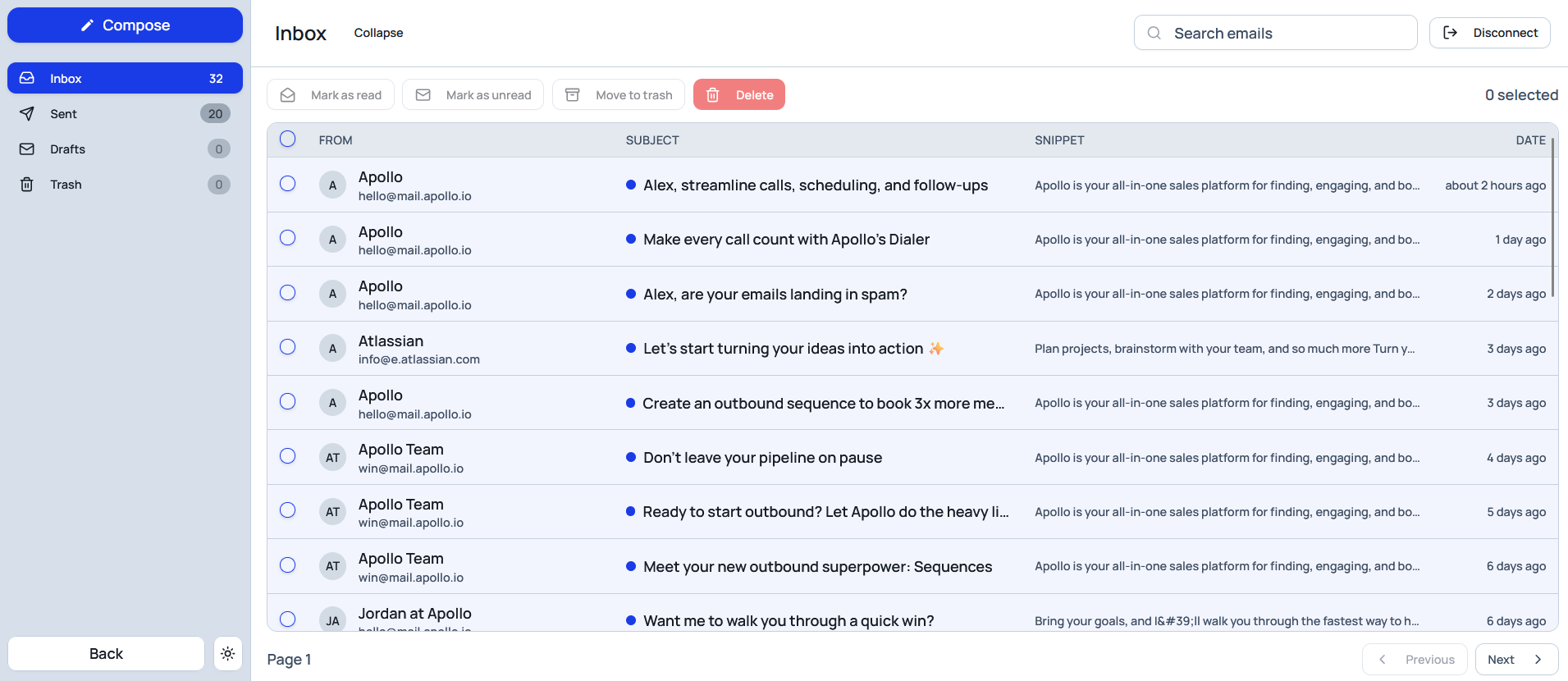
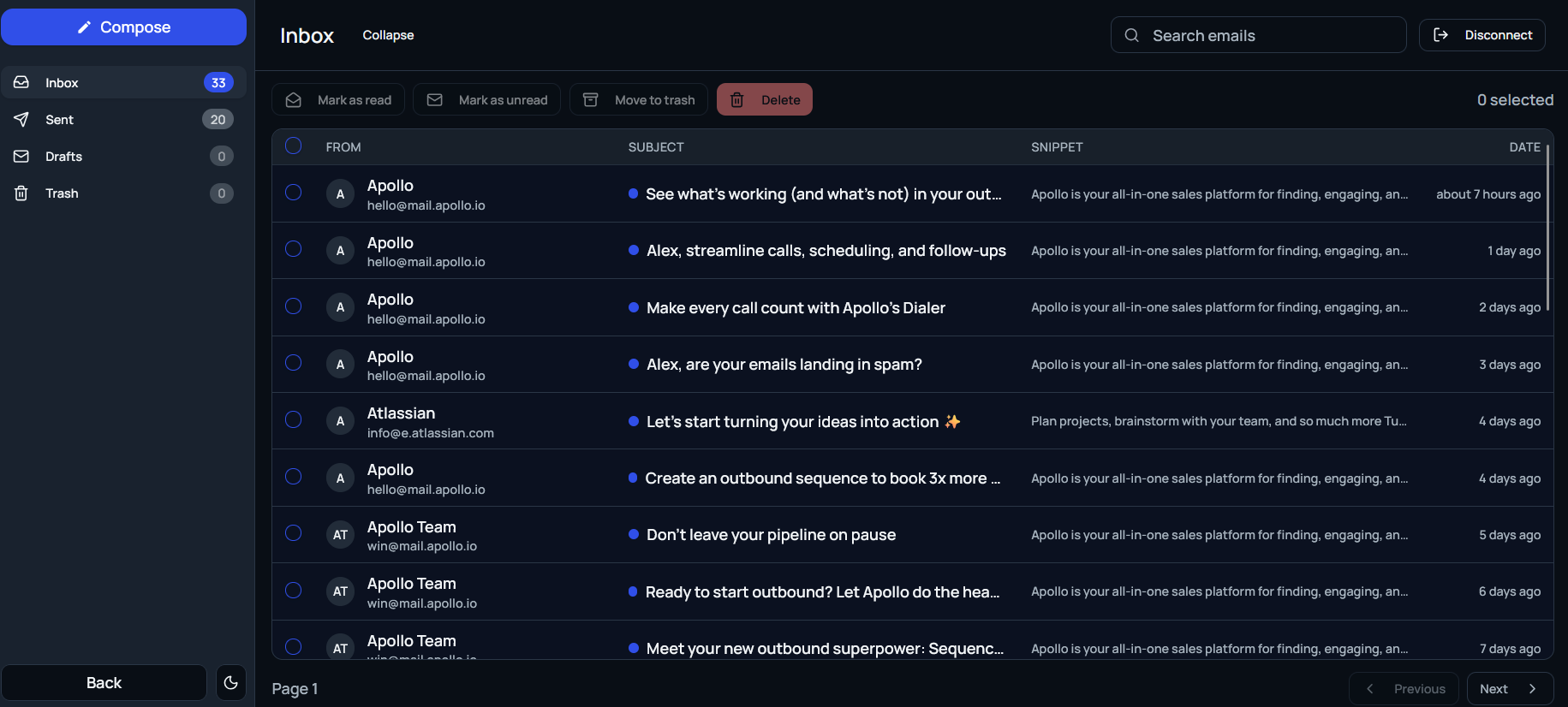
Celect consolidates all email activity into one workspace:
- Inbox: Shows all received messages and candidate replies.
- Sent: Lists every outgoing message, including template-based and manual emails.
- Threaded view: Conversations open in a familiar running-thread layout.
- Search: Quickly find messages by subject, recipient, or keyword.
You can reply, forward, or archive messages directly inside Celect.
Composing Emails
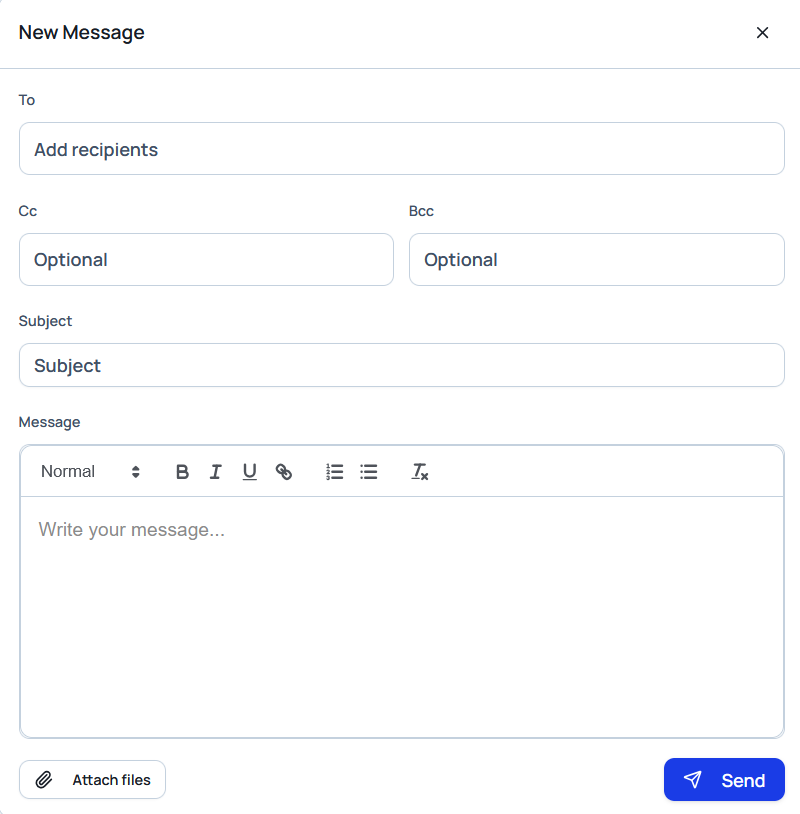
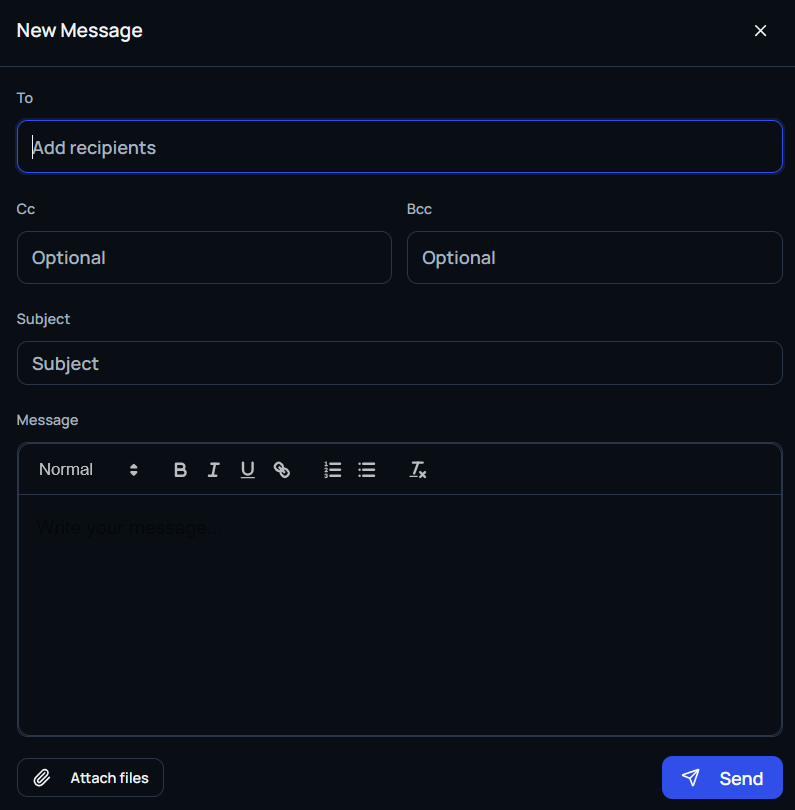
Select Compose to draft a new message to any contact.
- To / Cc / Bcc: Add recipients manually or from existing candidate records.
- Subject: Provide a clear subject line.
- Body: Use the rich text editor for formatting, links, and code snippets.
- Attachments: Upload resumes, interview guides, or other supporting files.
- Send / Cancel: Choose to deliver or discard your message.
Emails sent from Celect appear as if they were sent directly from your connected Gmail or Outlook account.
Templates and Automation
Celect's built-in templates keep communication fast and consistent. Available templates include:
- Screening Call
- Interview Invitation
- Job Offer
- Rejection Letter
- Follow-Up
Each template can be edited before sending and automatically fills in candidate-specific details where available.
Benefits of Integration
- Single inbox management: Handle all hiring conversations in one place.
- Cross-platform sync: Gmail or Outlook stays fully mirrored with Celect.
- Improved deliverability: Messages use your verified account credentials.
- Seamless experience: Send, receive, and organize email without leaving the platform.
Candidate Quick Actions
Thumbs Up
Selecting the thumbs-up icon adds the candidate to the Shortlisted category for quick follow-up.
- The action is private; candidates are not notified.
- Shortlisted candidates are easy to filter and review later.
- You can undo the action to return a candidate to a previous status.
Thumbs Down
Selecting the thumbs-down icon moves the candidate to Rejected when they are no longer a fit.
- The action is private; candidates are not notified automatically.
- You can revisit the rejected list at any time and reverse the decision or send a message.
Notes
Use notes to record interview impressions, team feedback, or reminders. Notes are shared internally among recruiters and are never visible to candidates.
These tools make it simple to review, organize, and communicate with candidates—all without leaving Celect.