Overview
The Calendar suite gives recruiters end-to-end control over interview scheduling. Integrations, event types, and availability windows ensure candidates can book time without endless back-and-forth messaging.
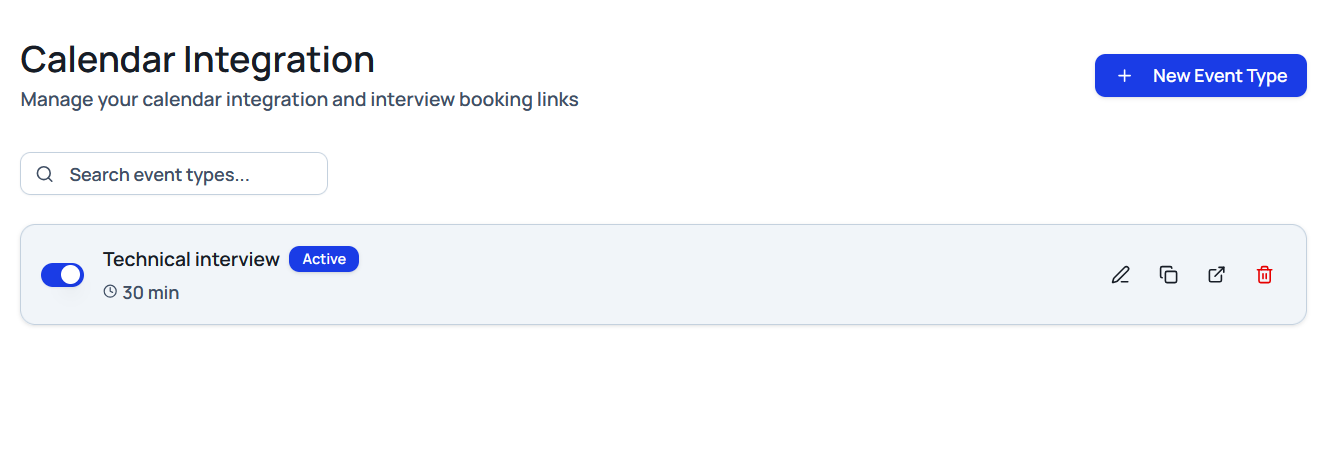
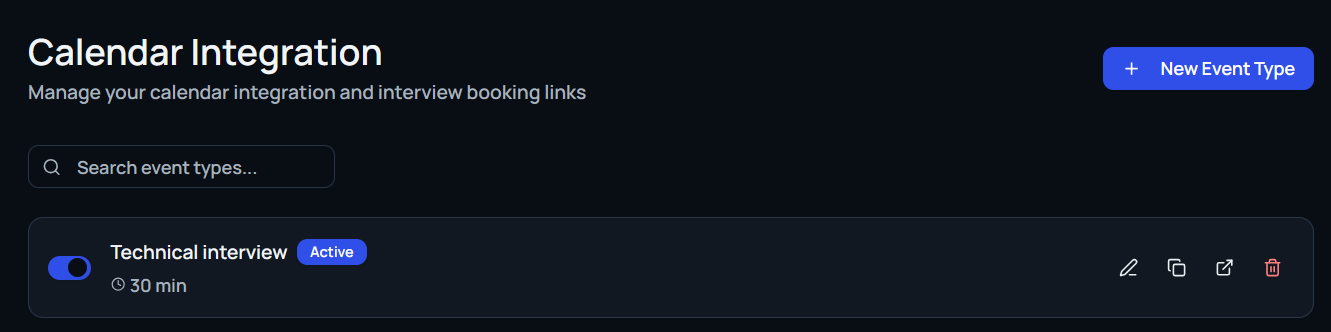
Calendar Integration Dashboard
Access the dashboard from the sidebar to manage all event types at a glance:
- View every active event you’ve published.
- Toggle visibility for specific event types.
- Edit, copy, open, or delete booking links.
- Create new event types with the + New button.
Each event card lists the title, duration (for example, 15, 30, or 60 minutes), and quick actions to update or share the link.
Creating a New Event Type
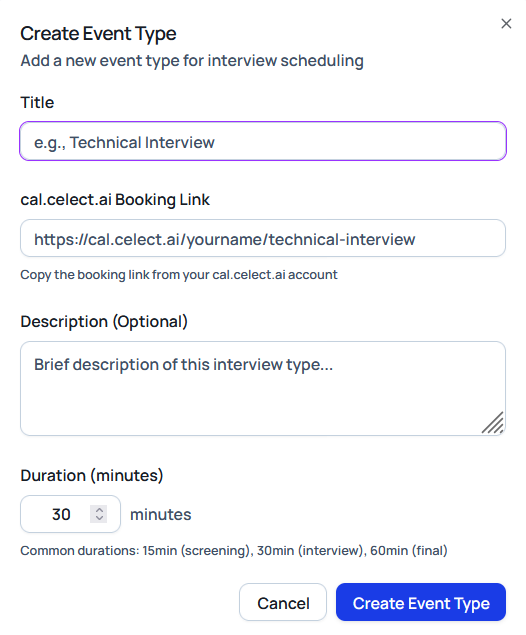
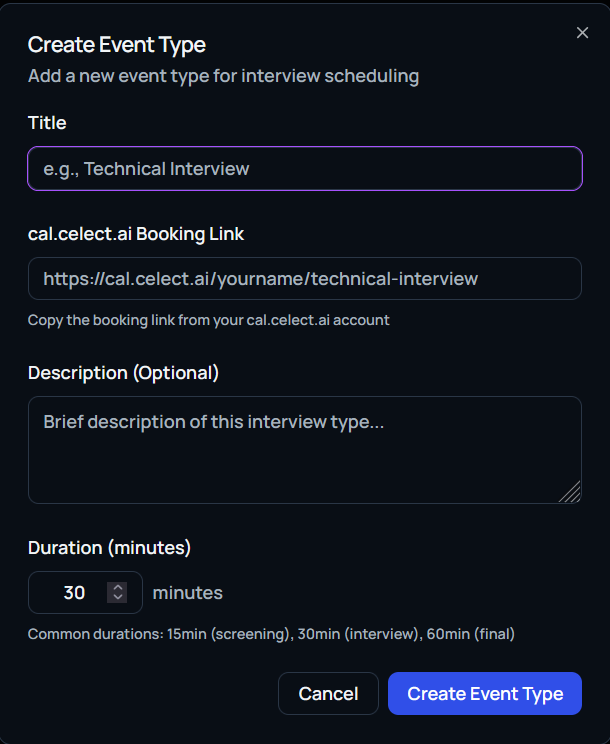
Set up a scheduling link that syncs with your calendar:
- Select + New in the top-right corner.
- Provide the event Title (for example, “Quick Chat” or “30-Min Interview”).
- Paste the cal.celect.ai booking link generated from your Celect calendar.
- Add an optional description for extra context.
- Choose a Duration (15-minute screens, 30-minute interviews, 60-minute finals, etc.).
- Click Create Event Type to publish the link.
Celect generates a unique booking URL you can copy from the dashboard any time.
Editing an Event Type
Use the pencil icon on any card to update:
- Event title
- Booking link
- Description
- Duration
Changes take effect immediately on the public booking page.
Booking Management
The Bookings tab tracks every meeting scheduled via your links. Bookings are organized into:
- Upcoming
- Unconfirmed
- Recurring
- Past
- Canceled (displayed with strikethrough formatting)
Cards include the event name, date, time, attendee list, and conferencing details (such as Google Meet). Filters and segments help you find relevant meetings quickly.
Availability Settings
Define when you’re bookable by selecting Availability in the sidebar:
- Create multiple availability sets (for example, “Working Hours” or “Evening Slots”).
- Specify time zones and precise windows (for instance, Monday–Friday, 9 a.m.–5 p.m. EST).
- Add out-of-office ranges to pause booking links when you’re unavailable.
Each availability schedule can be toggled on or off or deleted independently.
App Integration & Conflict Management
Connect external calendars from the Apps section:
- Add Google Calendar or Outlook Calendar to auto-create events.
- Enable Check for Conflicts to prevent double-bookings across synced calendars.
Google Meet and other conferencing tools are automatically supported.
Calendar Settings
Adjust personal scheduling details at cal.celect.ai/settings:
- Upload a profile photo.
- Customize the public username (for example,
cal.celect.ai/paolo). - Add contact information and a short bio.
- Configure notification preferences and conferencing defaults.