Overview
The Hiring Pipeline provides a stage-by-stage view of every candidate tied to a job. Columns mirror your interview flow, while candidate cards and bulk tools make it easy to monitor progress, take action, and keep the process consistent across teams.
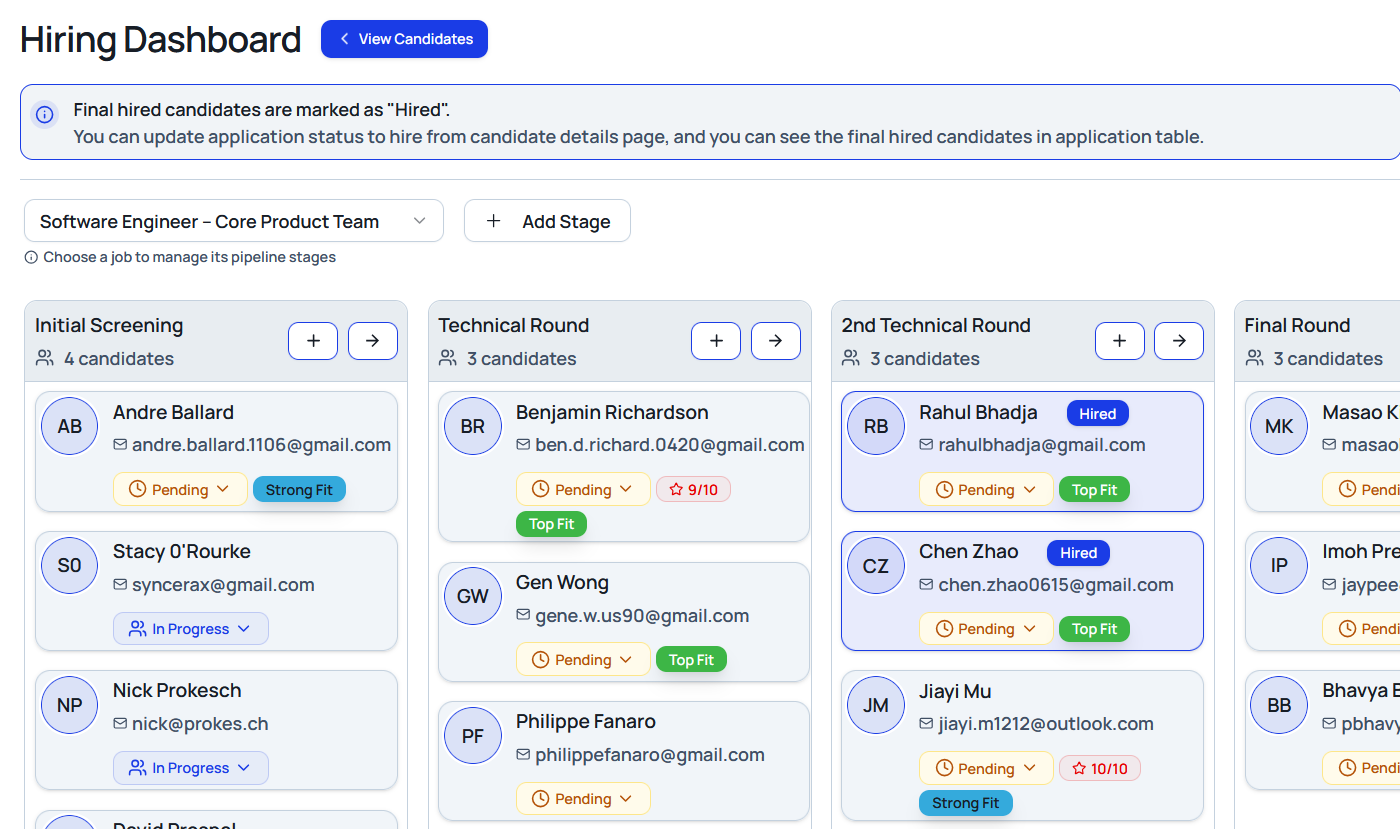
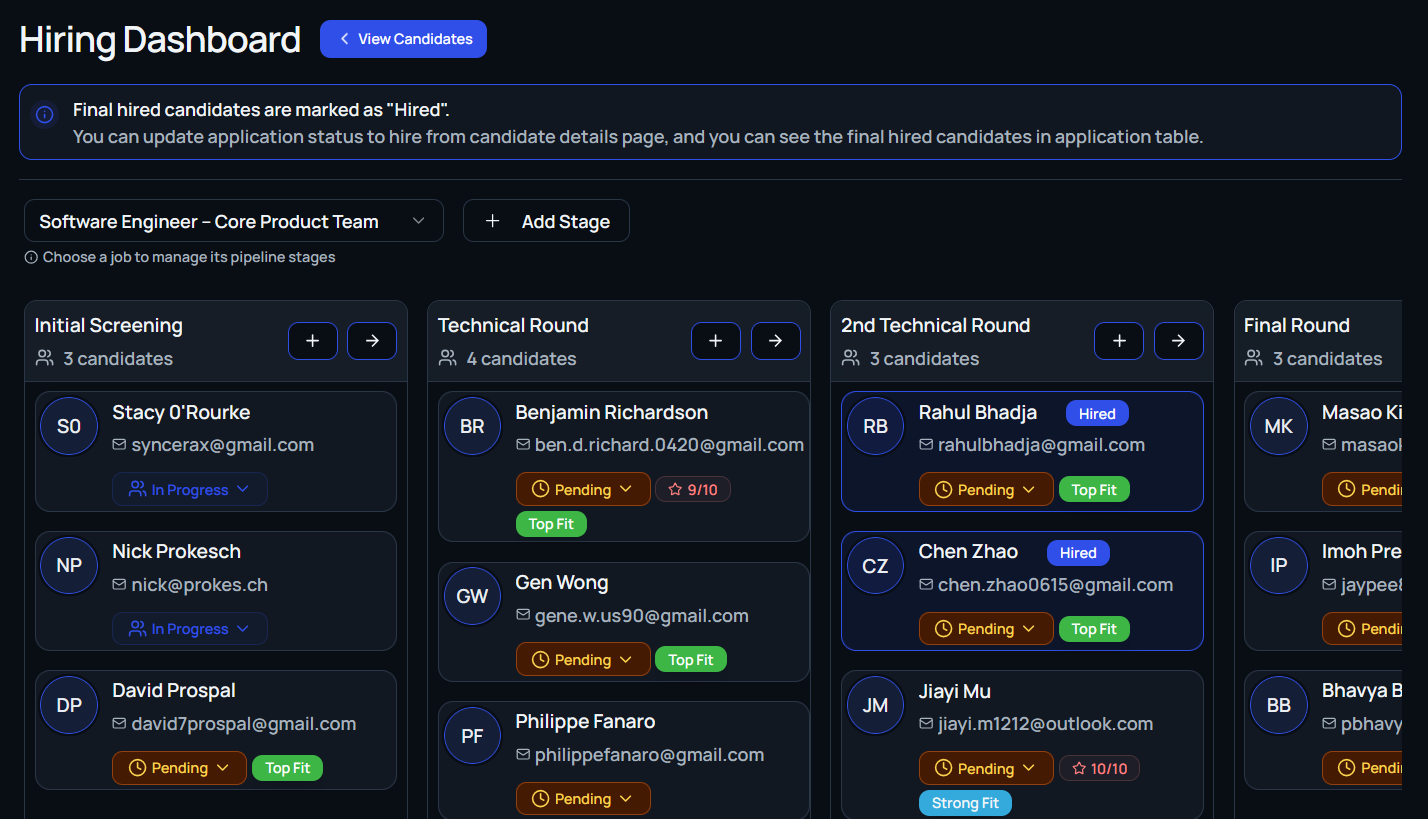
Pipeline Dashboard
Each column in the dashboard represents a stage—such as Initial Call, 2nd Round, or Technical Interview—and candidate cards live inside those columns. Cards surface:
- Candidate name and email
- Current interview status (for example,
PendingorCompleted) - A blue arrow button to move the individual to the next stage
Every column also includes two controls:
- Add Candidates to Initial Call (+): Available on the first column to manually add applicants into the pipeline.
- Bulk Move Candidates (→): Opens a modal so you can move multiple selected candidates to a new stage at once.
Add Candidates to Initial Call
Selecting the + icon opens a modal with:
- Search across the applicant pool
- AI-generated match labels such as
Advanced,Qualified, orBelow Average - Multi-select controls to add as many candidates as needed, then a single Add to Pipeline action
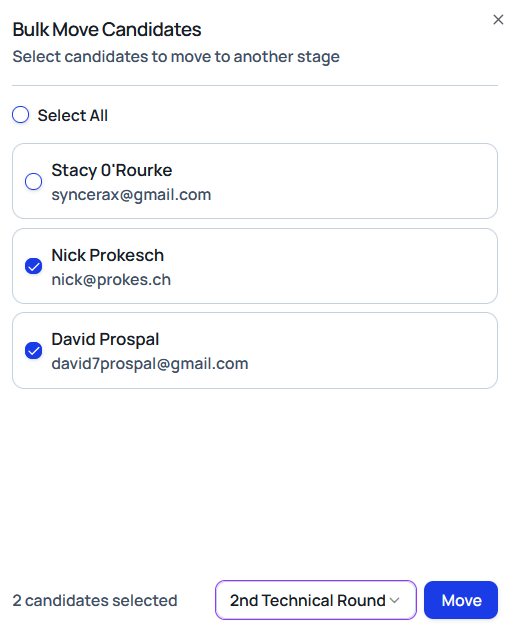
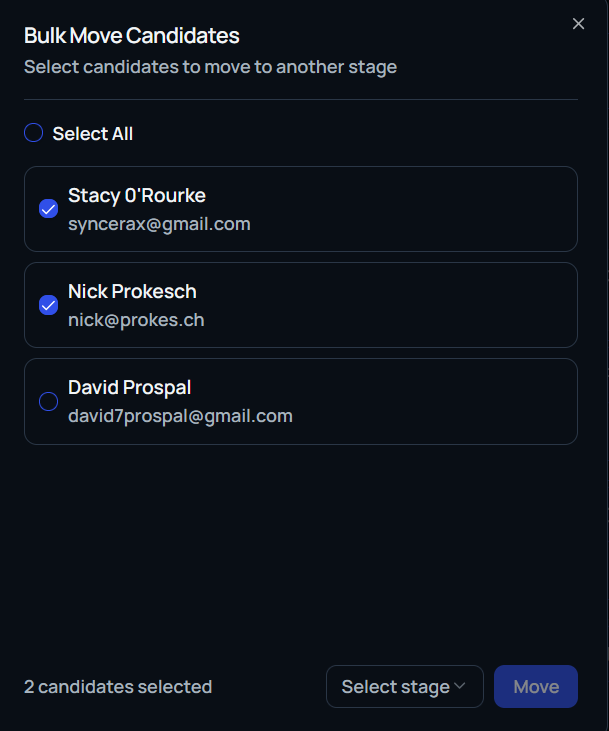
Bulk Move Candidates
Use the arrow icon at the top of any stage to streamline group actions:
- Select candidate cards from the current stage.
- Pick the destination stage from the dropdown.
- Confirm with Move Candidates to advance them instantly.
Candidate Scoring & Notes Panel
Clicking a candidate opens a details drawer with tabs:
- Overview: Application date, resume link, social accounts, status, and scorecards (when enabled).
- Files: Upload or review assessments, take-home tasks, and other artifacts.
- Notes: Leave private comments to share context with your team.
When stage-specific scoring is active, evaluators see criteria such as Technical Skills, Communication, and Overall Score.
Pipeline Templates
Standardize processes by creating reusable templates:
- Navigate to Hiring Pipeline → Pipeline Templates.
- Select Create Template.
- Provide a name and initial stage.
- Optionally add a description.
- Confirm with Create Template.
Editing Pipeline Stages
To manage an existing template:
- Choose Manage next to the template.
- Drag and drop stages into the desired order.
- Use the gear icon to adjust stage settings.
- Remove stages with the trash icon.
Each stage supports:
- Custom naming and descriptions
- File upload and feedback toggles
- Interview flags to distinguish evaluation rounds
View Candidates Button
The View Candidates control in the top-right corner exits the stage board and returns you to the full candidate list. Use it to switch back to ranked or filtered views for deeper analysis.